.png)
Node Dialog is used to populate the Node fields. Node Dialog has a familiar interface for working with a new issue in Jira, but has slight differences from it:
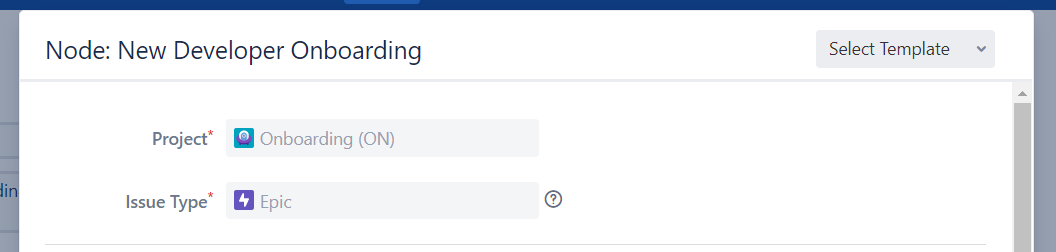
1. You can pick the project and issue type only when you create or edit Node. In Node Dialog these fields are disabled.
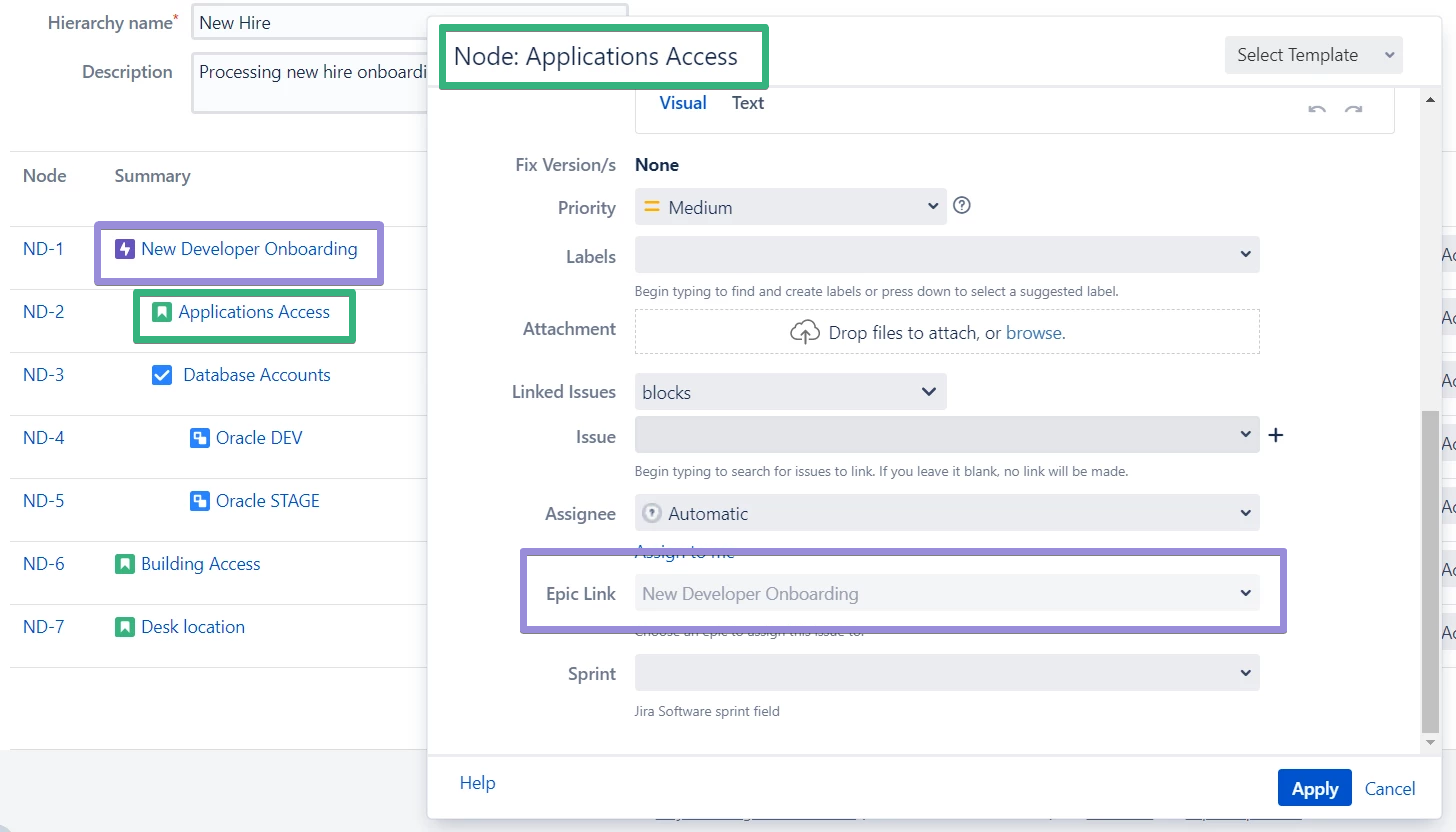
2. Epic Link is not editable if the current Node already has a Parent Node with issue type Epic.
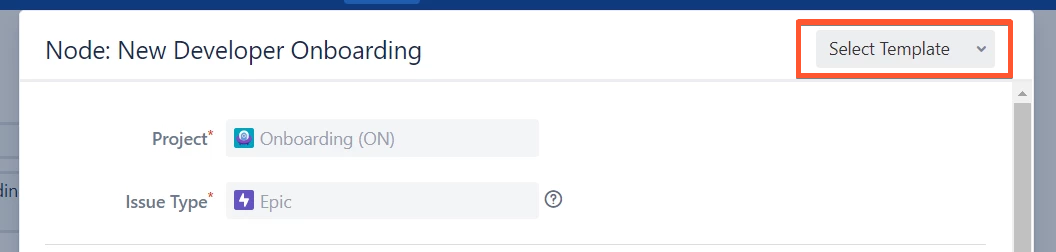
Also, you can use Template Picker that’s located in the upper right corner of the dialog to simplify filling out the fields in case you already have some Templates.
You can open Node Dialog using one of the following locations:
From the create\edit Hierarchy page:
-
Click on the Node, Summary field or click the Edit Fields button

From Manage Hierarchy Page
-
Click on the Node, Summary fields

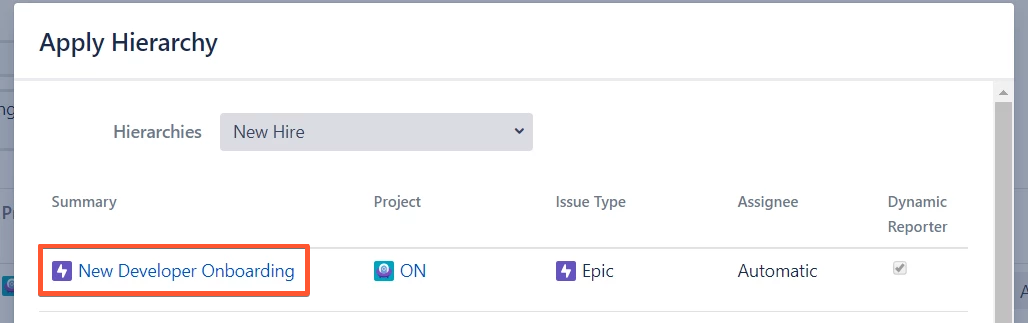
From Apply Hierarchy Dialog
-
Click on the Summary field.
For any questions or feature requests contact us via the Customer Portal
Or drop us an email at support@appsdelivered.atlassian.net. If you are using this option, please check your junk folder regularly, as our reply can be placed there by your email service.
Before submitting a bug report or support ticket, please update to the latest version of the add-on.
Please add information about the version of Jira and the add-on.