
This guide walks you through migrating Smart Issue Templates data (scopes, templates and hierarchies) from Jira Data Center to Jira Cloud without the Jira Cloud Migration Assistant (JCMA). You export your data from Data Center as files, then import those files into Smart Issue Templates on Jira Cloud.
This is the alternative path. The Automated migration (Recommended) carries the same data for you. Use the manual path when JCMA cannot complete the migration, when JCMA is not an option for your site, or when you want a copy of your data you can keep.
1. Before You Begin
Prerequisites
|
Requirement |
Details |
|---|---|
|
DC Plugin Version |
3.1.9 or higher (Jira 10 and below) or 4.0.5 or higher (Jira 11) |
|
Cloud Plugin Version |
28.0.0 or higher |
|
Permissions |
Jira Administrator on both Data Center and Cloud |
Prepare the Cloud site
-
The projects, work types (issue types), groups and users that your scopes, templates and hierarchies point at should already exist on the Cloud site. Anything the Cloud site cannot match is listed before the import and left out; the rest of the item is still imported.
-
Users are matched in Cloud by email address. Each exported file lists the email of every user it refers to.
-
The Cloud import takes at most 1,000 scopes, 500 templates and 100 hierarchies per file. If you have more, use the Automated migration or contact support.
2. Export from Jira Data Center
-
In Jira DC, open the Templates menu in the top bar

-
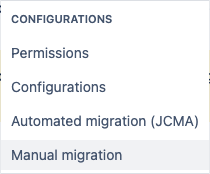
Under Configurations, click Manual migration
-
Under Choose what to export, select the data you want to migrate: Export scopes, Export templates and Export hierarchies
-
Click Export selected. The page shows Preparing your file... while it works, then Exported N files when the download is ready
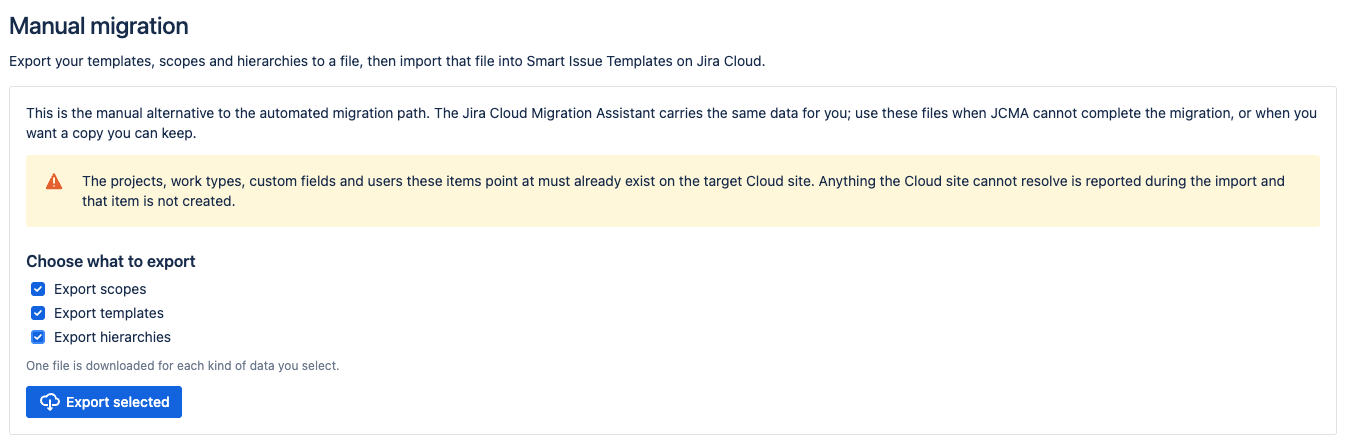
One file is downloaded for each kind of data you selected, named by data type and date:
|
Data |
File |
|---|---|
|
Scopes |
|
|
Templates |
|
|
Hierarchies |
|
3. Import into Jira Cloud
Import the files into Smart Issue Templates on Jira Cloud in this order. Templates refer to scopes, and hierarchies refer to both, so each file needs the previous ones to be in Cloud already. The full Cloud steps are in Manual migration (Alternative) in the Cloud documentation.
|
Order |
File |
How to import |
|---|---|---|
|
1 |
Scopes |
|
|
2 |
Templates |
|
|
3 |
Hierarchies |
Use one path for each kind of data. If your data already came across with the Automated migration, importing the same files can create copies in Cloud.
4. Troubleshooting
|
Issue |
Possible Cause |
Solution |
|---|---|---|
|
Choose at least one kind of data to export. |
No checkbox was selected |
Select at least one of scopes, templates or hierarchies, then click Export selected again |
|
Could not export ... |
The export failed on the Data Center side |
Try again. If it persists, contact support with the full message |
|
The Cloud import lists items it cannot match on this site |
A project, work type, group or user does not exist on the Cloud site |
Create it in Cloud, then import that file again. Entries that were already imported are replaced, not copied |
Getting Help
If you encounter issues not covered here, contact us via the Customer Portal with your Jira and app versions, the exported files, and any message shown during the export or import.
Moving templates between two Data Center instances instead of to Cloud? See Move templates between Data Center instances.