
Import the hierarchies-export-YYYY-MM-DD.json file created by the Data Center Manual migration export. Import scopes and templates first, because hierarchies refer to both.
This is part of the Manual migration (Alternative). To create the file, see Manual migration (Alternative) in the Data Center documentation.
How to Import Hierarchies
-
Open Smart Issue Templates and select Hierarchies in the top menu
-
On Manage hierarchies, open the More actions (...) menu and select Import
-
In Import hierarchies, choose the
hierarchies-export-YYYY-MM-DD.jsonfile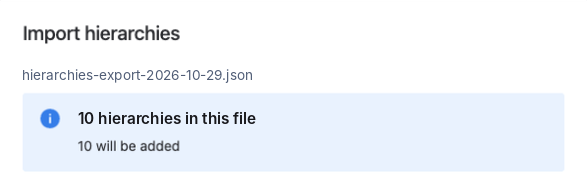
-
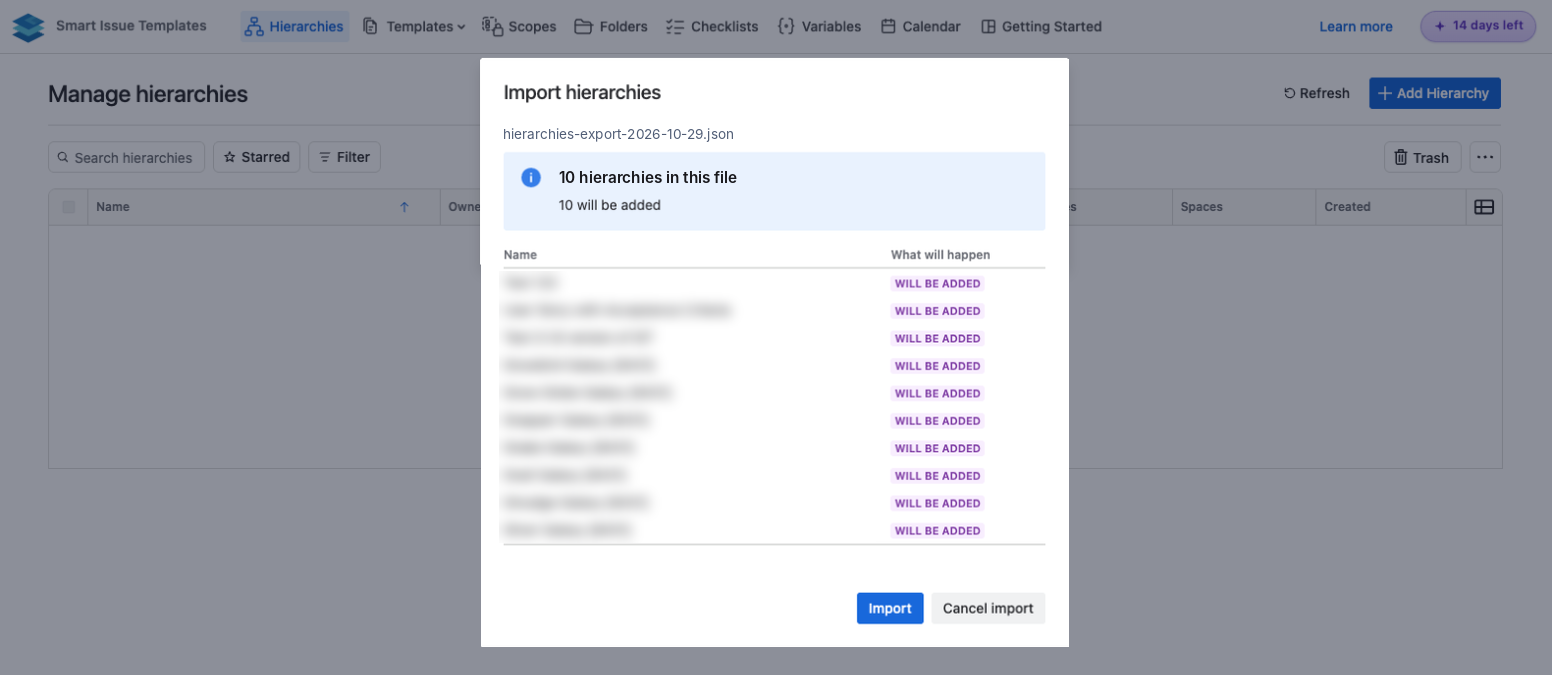
Review the preview. It shows how many hierarchies are in the file, what will happen to each one, and anything that cannot be matched on this site
-
Click Import and keep the dialog open until it finishes
-
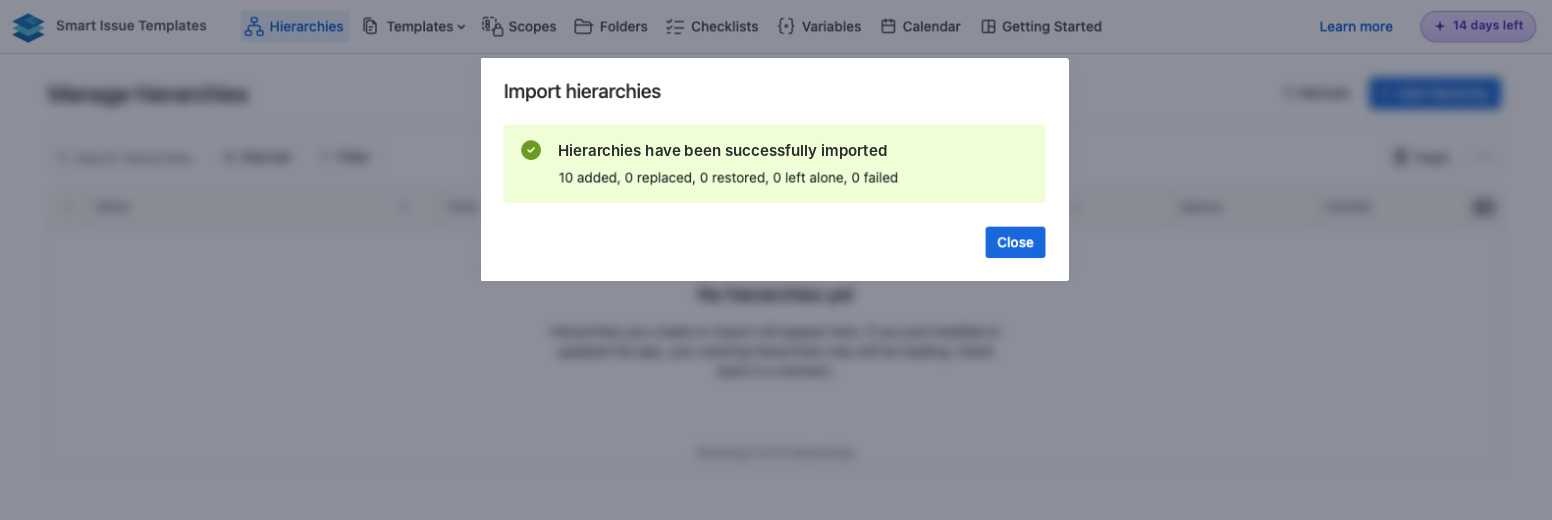
The result shows Hierarchies have been successfully imported, or The import finished with some hierarchies left with the reasons, then click Close
A file can hold at most 100 hierarchies. A larger file stops with This file holds N hierarchies. The most that can be imported at once is 100. Contact support if your export is larger.
How Hierarchies Are Matched
|
Part of the hierarchy |
How it is matched |
If it cannot be matched |
|---|---|---|
|
Project of a level |
By project key, then by name |
The level is kept, the project is left empty and the level is marked Incomplete |
|
Work type of a level |
By name, within the matched project |
The level is kept, the work type is left empty and the level is marked Incomplete |
|
Assignee of a level |
By email, using the users listed in the file |
Left out of the level |
|
Priority, resolution, components and versions |
By name |
Left out of the level |
|
Owner |
By email, using the users listed in the file |
The user running the import becomes the owner |
Not carried
-
The reporter of a level, unless it is a dynamic reporter
-
Anything the Data Center export itself could not carry, listed under Fields the export could not carry
After the import
-
Open the imported hierarchies and look for levels marked Incomplete. Set the missing project or work type, or create it on the site and import the file again
-
Importing the same file again replaces the hierarchies that changed and leaves the rest alone
If your hierarchies already came across with the Automated migration, do not import them again from a file. The two are not matched to each other, so you can end up with copies.
See also Migrate from Data Center to Cloud for known limitations and frequently asked questions.