.png)
This guide walks you through migrating Smart Issue Templates data (scopes, templates and hierarchies) from Jira Data Center to Jira Cloud using JCMA (Jira Cloud Migration Assistant). By the end of this guide, you'll be able to start a migration, monitor its progress, and understand the results.
This is the recommended path. If the automated migration cannot complete, or JCMA is not an option for your site, use the Manual migration path (alternative): export your data from Data Center and import it into Jira Cloud.
For what happens on the Cloud side (how data is matched, the Migration status page and its Error log), see Automated migration (Recommended) in the Cloud documentation.
1. Before You Begin
Prerequisites
|
Requirement |
Details |
|---|---|
|
DC Plugin Version |
3.1.9 or higher (Jira 10 and below) or 4.0.5 or higher (Jira 11) |
|
Cloud Plugin Version |
28.0.0 or higher |
|
DC Permissions |
Jira Administrator |
|
Cloud Permissions |
Organization Administrator |
|
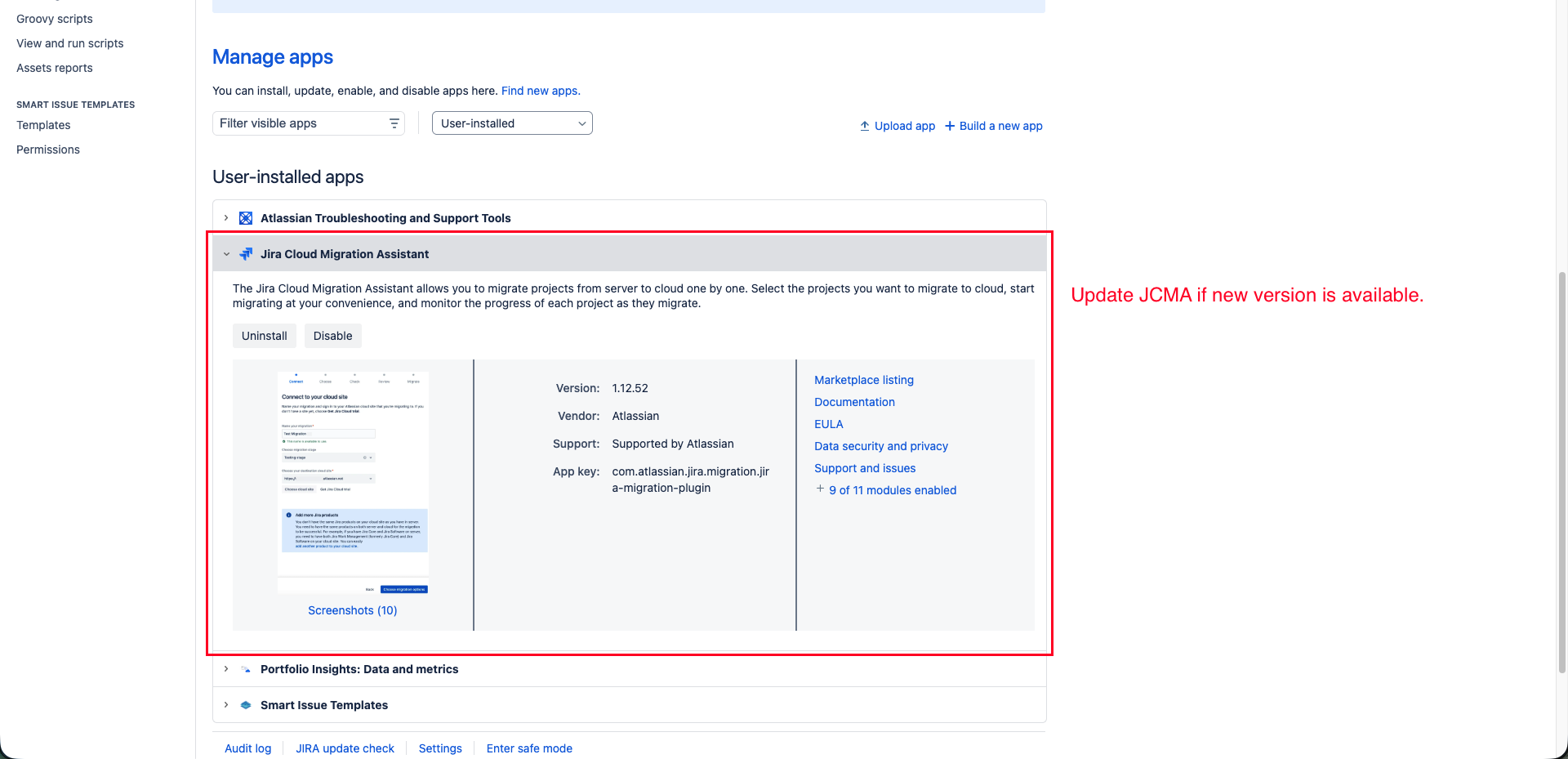
JCMA 1.12.46 or higher installed on your DC instance |
|
What Gets Migrated
|
Entity |
Status |
Description |
|---|---|---|
|
Scopes |
✅ Supported |
Scope configurations including projects, issue types, and groups |
|
Templates - System fields |
✅ Supported |
Issue templates with name, description, content, project, issue type, scope, available for, summary, assignee and reporter, labels, priority, due date, components, fix/affected versions, linked issues, epic link, time tracking, environment |
|
Templates - Custom fields |
✅ Supported |
Issue templates’ custom field values (e.g., select lists, user/group pickers, dates, numbers) and their mappings between Jira DC and Jira Cloud |
|
Hierarchies |
✅ Supported |
Template hierarchy structures, with the levels and the issue content of each level |
Known Limitations
-
The projects and work types (issue types) of your scopes and templates must be part of the same Jira migration. A scope or template whose project or work type cannot be matched in Cloud is not migrated, and the Cloud Error log names what was missing.
-
A hierarchy level whose project or work type is not on the Cloud site is kept with that value empty and marked Incomplete, so you can fix it in Cloud.
-
The scope and available for settings of a hierarchy, and the reporter of a hierarchy level (unless it is a dynamic reporter), are not carried. Set them again in Cloud.
-
Users are matched through the JCMA user mapping. If an owner cannot be found, a site administrator becomes the owner, or it shows as Migrated User.
-
Scopes are always migrated first, then templates, then hierarchies.
Expected Timing
|
Data Volume |
Estimated Time |
|---|---|
|
~10,000 scopes |
25-30 minutes |
|
~10,000 templates |
70-90 minutes |
Note: Migration time varies based on the complexity of your data, including user information, project mappings, and group configurations.
2. Running the Migration
2.1 Start Migration from Jira DC
-
Navigate to Jira Administration > System > Migrate to cloud
-
Create a new migration and follow the wizard
-
In the app selection step, ensure Smart Issue Templates is selected. Scopes, templates and hierarchies are all included; there is nothing to select per entity.
-
Review the migration summary and click Run Migration



Re-running a Migration
If you need to re-run a migration:
-
Previously migrated data will be overwritten (not duplicated)
-
This is useful if you made changes in DC after the initial migration
-
Simply start a new migration following the same steps above
2.2 Monitoring Progress
2.2.1 Plugin migration dashboard - Jira Cloud
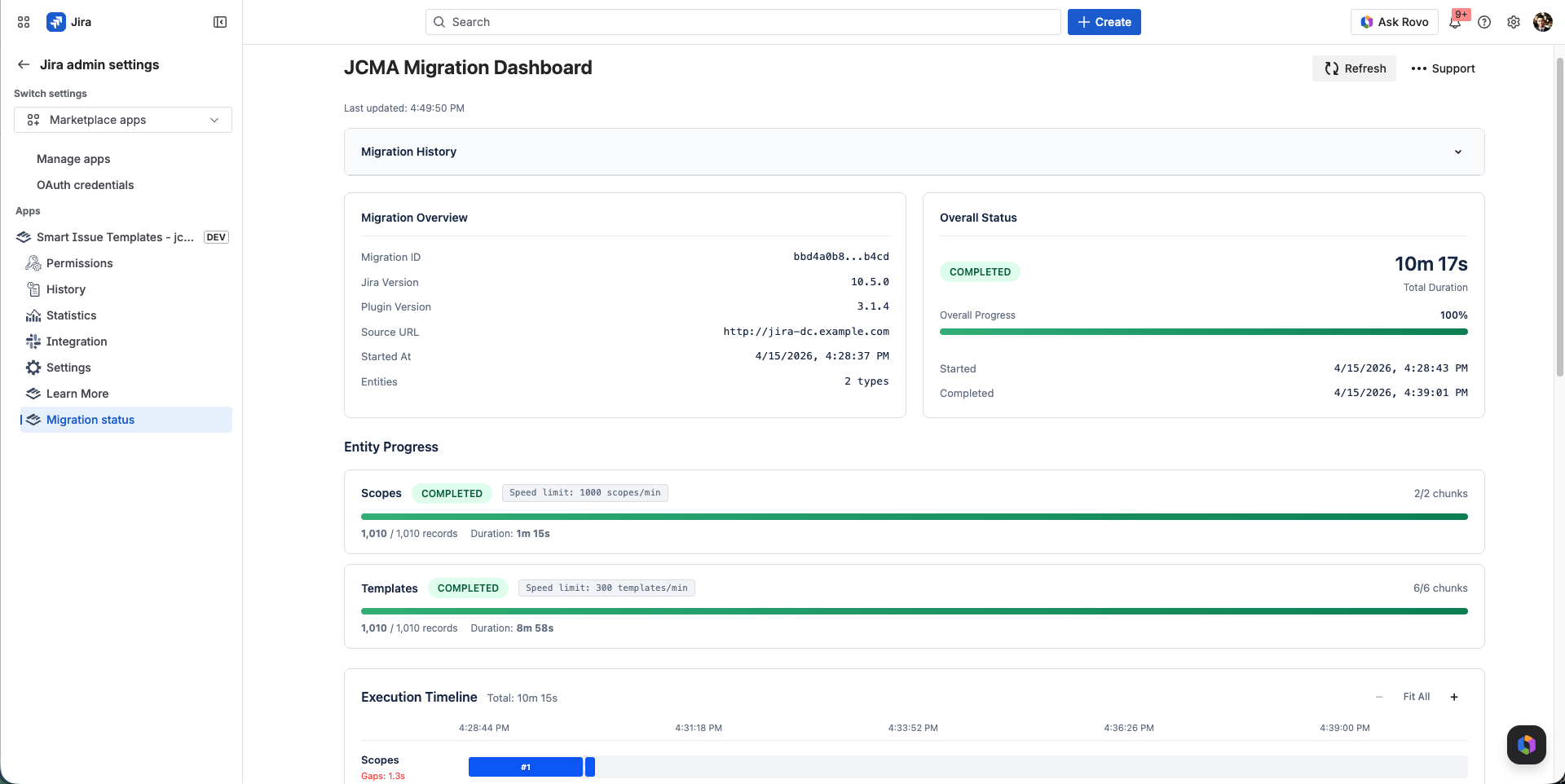
During the migration, you can monitor progress in the Smart Issue Templates Migration dashboard:
-
In Jira Cloud, go to Settings (⚙) > Apps, find Smart Issue Templates, open the ... menu, select App Settings and open Migration status
-
You will be able to see:
|
Section |
Description |
|---|---|
|
Support Tools |
Allows you to delete temporary information used for the migration, migration history and export the dashboard information |
|
Migration Overview |
Displays general information about the migration, including the Jira version, source URL, and the total number of entities to be migrated |
|
Overall Status |
Shows the current state of the migration and overall progress percentage |
|
Entity Progress |
Breaks down progress by entity (Scopes, Templates, Hierarchies), showing records migrated, completion percentage, and status for each |
|
Error log |
Everything that did not come across in full, grouped by problem, with a count of errors and warnings. Shows Nothing to report when everything came across |
|
Execution Timeline |
Visual timeline showing when each chunk was processed, helping identify bottlenecks or gaps in progress |
|
Chunk Timing Details |
Detailed table of each chunk with processing time, records processed and status |
|
Total amount of migrated records |
Summary showing the total count of successfully migrated records for each entity |
2.2.2 JCMA dashboard - Jira Data Center
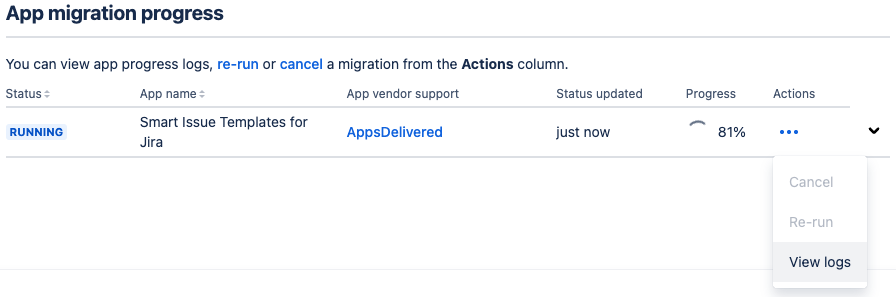
During the migration, you can monitor progress in the JCMA dashboard:
-
Go to Jira Administration > System > Migrate to cloud in Jira DC
-
Find your active migration
-
Click View details to see the logs

-
Scroll down to find the Smart Issue Templates plugin, then click on View logs to download the migration logs as a CSV file
-
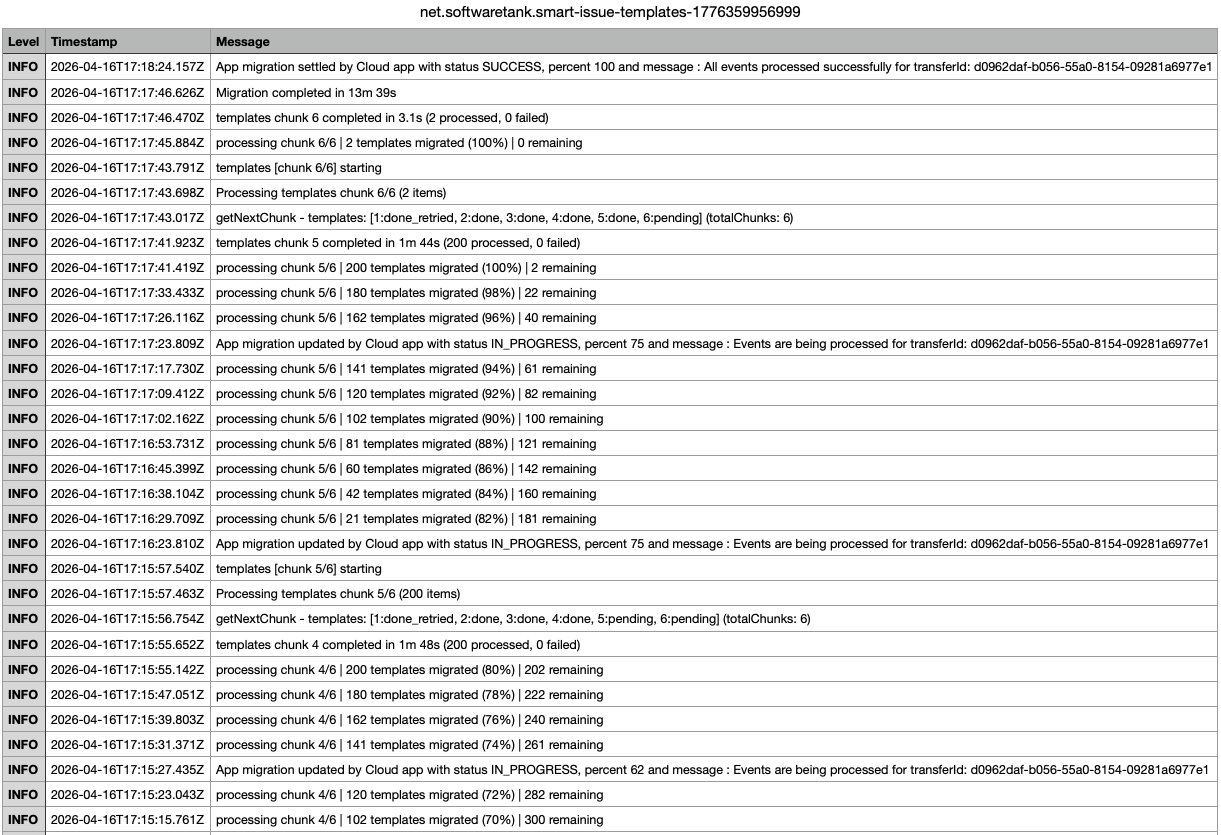
Open the CSV file, and it should look like this:
2.2.2.1 Understanding Progress Logs
|
Log Message |
Meaning |
|---|---|
|
|
Cloud received the migration, with the number of records and chunks for each entity |
|
|
Scopes and templates progress, every 10% |
|
|
Hierarchies progress, once per chunk |
|
|
Migration finished |
|
|
No problems to review |
|
|
A summary of the problems follows, one line per kind. The full list is in the Error log on the Cloud Migration status page (the log calls it Migration log) |
Note: Additional logs not included in this documentation may help with technical analysis when troubleshooting migration failures.
2.2.2.2 Understanding Statuses
|
Status |
Description |
What To Do |
|---|---|---|
|
RUNNING |
Migration is actively processing data |
Wait for completion. If it exceeds expected time significantly (2x or more), consider cancelling manually |
|
COMPLETE |
All data migrated successfully |
Verify data in Cloud instance |
|
TIME OUT |
The migration stopped because data transfer became too slow to continue |
Check the logs to identify the cause, then re-run if needed. Previously migrated data remains intact |
|
FAILED / INCOMPLETE |
Technical error or connection issue |
Check error logs, verify connectivity, contact support if issue persists |
2.2.3 Cloud Migrations page - Jira Data Center
Smart Issue Templates records every export it sends to JCMA, so you can confirm what was sent to Cloud and find out why a migration is stuck or failed.
-
In Jira DC, open the Templates menu in the top bar
-
Under Configurations, click Automated migration (JCMA)
-
The Cloud Migrations page shows the latest export and every export run, with the migration plan, environment, records and chunks per data type, and any failed chunks with their error
-
Use Open in JCMA to jump to the matching migration plan in the Migration Assistant
2.3 Verifying Migrated Data
-
Log in to your Jira Cloud instance
-
Navigate to Apps > Smart Issue Templates > Scopes
-
Verify that your scopes appear with correct configurations
-
Spot-check a few scopes to confirm:
-
Project assignments
-
Issue type mappings
-
Group permissions
-
Owner information
-
-
-
Verify that your templates appear with correct configurations
-
Spot-check a few templates to confirm:
-
Project assignments
-
Issue type mappings
-
System fields (name, description, summary,
owner, reporter, assignee, issue type, etc.)
-
-
-
Verify that your hierarchies appear with correct configurations
-
Spot-check a few hierarchies to confirm:
-
The levels and their order, and any level marked Incomplete
-
The project and issue type of each level
-
The issue content of each level (summary, assignee and other fields)
-
-
3. Troubleshooting
Common Issues
|
Issue |
Possible Cause |
Solution |
|---|---|---|
|
Migration stuck at 0% |
Plugin not properly configured |
Verify plugin versions and JCMA setup. Check the Cloud Migrations page in DC (section 2.2.3) to see whether the export was sent |
|
"Transfer expired" error |
Migration session timed out |
Start a new migration |
|
Missing scopes after migration |
A project or work type the scope uses was not part of the Jira migration, or the scope had invalid data |
Check the Error log on the Cloud Migration status page, add what is missing, and re-run the migration |
|
Missing templates after migration |
A project or work type the template uses was not part of the Jira migration, or the template had invalid data |
Check the Error log on the Cloud Migration status page, add what is missing, and re-run the migration |
|
Missing hierarchies after migration |
DC app older than 3.1.9 (Jira 10 and below) or 4.0.5 (Jira 11) |
Update the DC app and re-run the migration |
|
Hierarchy levels marked Incomplete |
The level's project or work type does not exist on the Cloud site |
Create it in Cloud and re-run the migration, or set it on the level in Cloud |
|
Owner shows as "Migrated User" |
Original owner not found in Cloud, and no site administrator could be used instead |
Manually update owner in Cloud |
|
The automated migration cannot complete |
JCMA keeps failing or timing out for the app |
Use the Manual migration path: export from Data Center and import into Cloud |
Getting Help
If you encounter issues not covered here:
-
Collect the migration logs from JCMA and migration dashboard information (Check how to do that on the 2.2.1 Plugin migration dashboard - Jira Cloud section)
-
Note the migration ID and timestamp
-
Contact support with this information
4. Appendix
Glossary
|
Term |
Definition |
|---|---|
|
JCMA |
Jira Cloud Migration Assistant - Atlassian's tool for migrating apps from DC to Cloud |
|
Chunk |
A batch of records processed together (used for large datasets) |
|
Transfer ID |
Unique identifier for a migration session |
|
Entity |
A type of data being migrated (scopes, templates, hierarchies) |