.png)
High-Performance Mode uses an optimized storage engine to deliver significantly faster load times for Templates and Scopes, especially for tenants with thousands of items. This feature is ideal for large-scale deployments where the classic view may experience slow performance or timeout issues.
When to enable: If you have more than 500 templates or experience slow load times in the Templates or Scopes admin views, High-Performance Mode can dramatically improve your experience.
Key Benefits
-
Faster page loads - Typical load times of 200-500ms regardless of dataset size
-
Efficient pagination - Navigate through thousands of items smoothly
-
Advanced filtering - Search and filter without performance degradation
-
No timeout issues - Eliminates circuit breaker errors on large tenants
Enabling High-Performance Mode
Prerequisites: You must complete the data migration for all entity types (Scopes, Spaces, and Templates) before enabling the High-Performance Storage toggle. The toggle will only work correctly after migration is complete.
To enable High-Performance Mode:
-
Navigate to Admin Settings from the app's main menu
-
Locate the Storage Settings panel
-
Run the data migration for each entity type (see Data Migration section below)
-
Once all migrations show "Completed", toggle High-Performance Storage to enable the feature
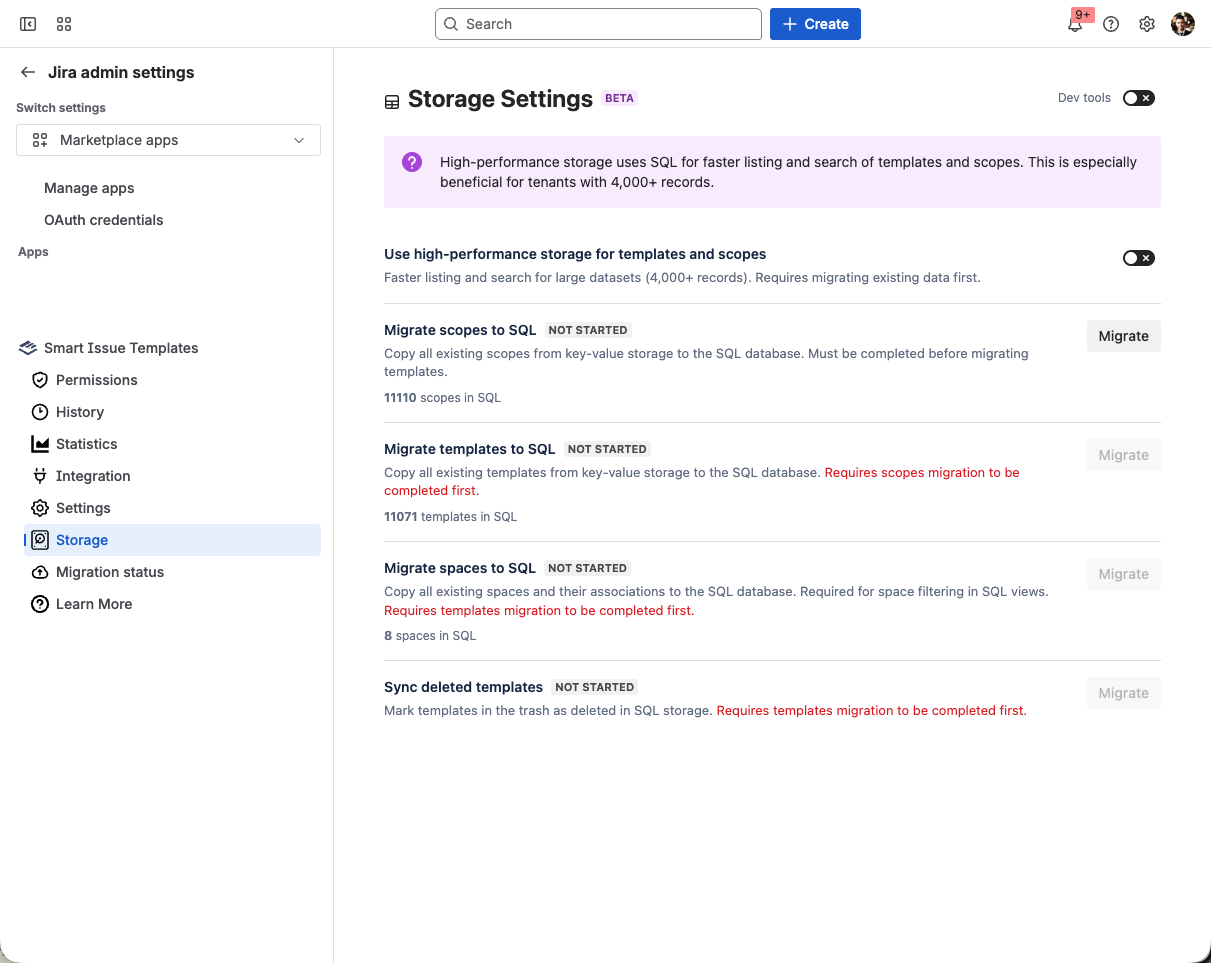
Data Migration
Before using High-Performance Mode, you need to migrate your existing data. The migration copies metadata from the classic storage to the optimized storage engine.
Important: Migration must be run in the following order: Scopes → Spaces → Templates. Templates reference Scopes and Spaces, so those must be migrated first.
Migration Steps
-
In the Storage Settings panel, click Migrate next to Scopes
-
Wait for the migration to complete (status will show "Completed")
-
Click Migrate next to Spaces
-
Wait for completion
-
Click Migrate next to Templates
-
Once all migrations are complete, enable the High-Performance Storage toggle
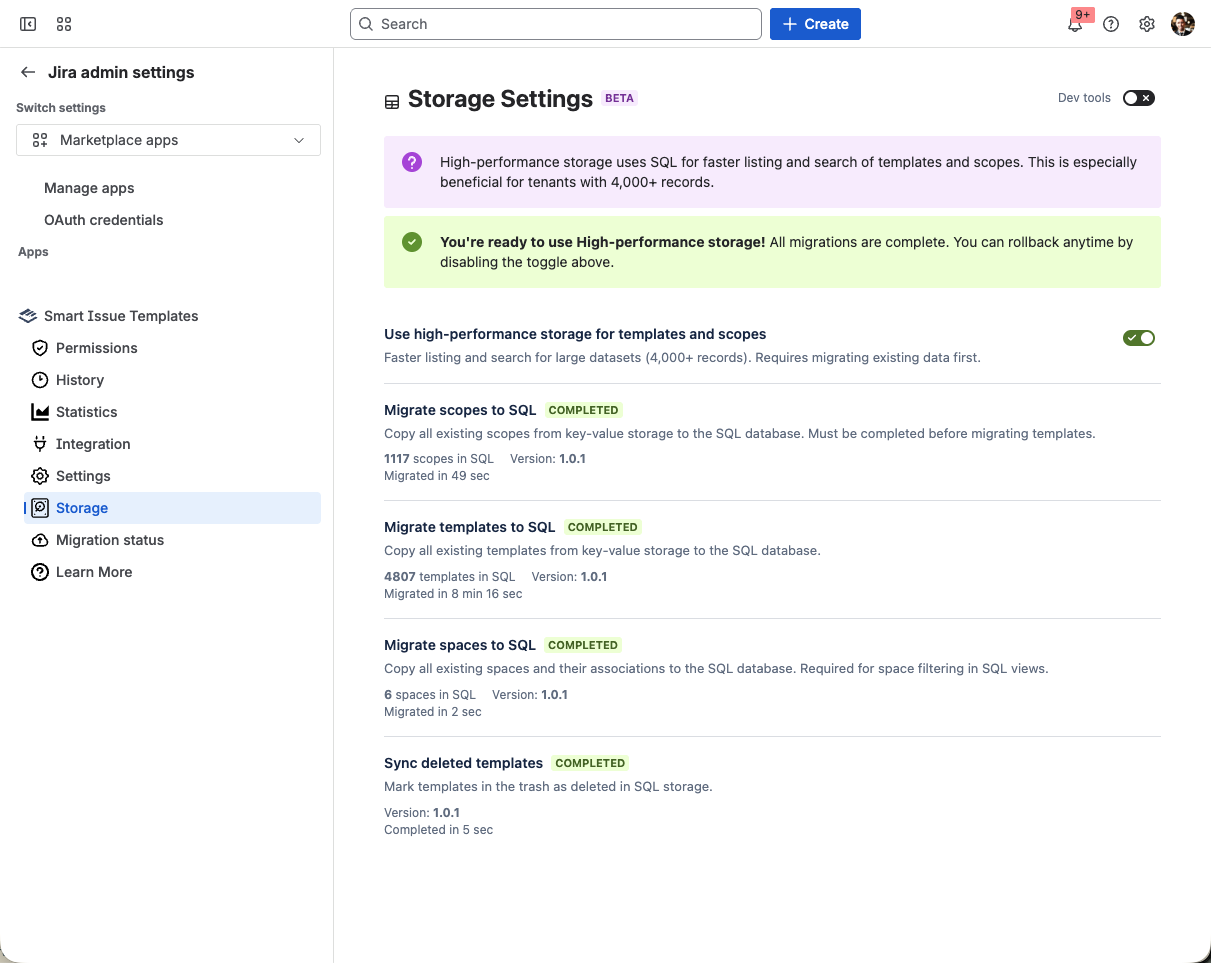
Migration Status Indicators
|
Status |
Description |
|---|---|
|
Not started |
Migration has not been run yet |
|
In progress |
Migration is currently running |
|
Completed |
All items have been migrated successfully |
|
Incomplete |
Some items failed to migrate - retry the migration |
|
Outdated |
New items exist that haven't been migrated - run migration again |
Using the High-Performance Views
Once migration is complete and High-Performance Mode is enabled, you'll see new views for Templates and Scopes with enhanced capabilities.
Templates View
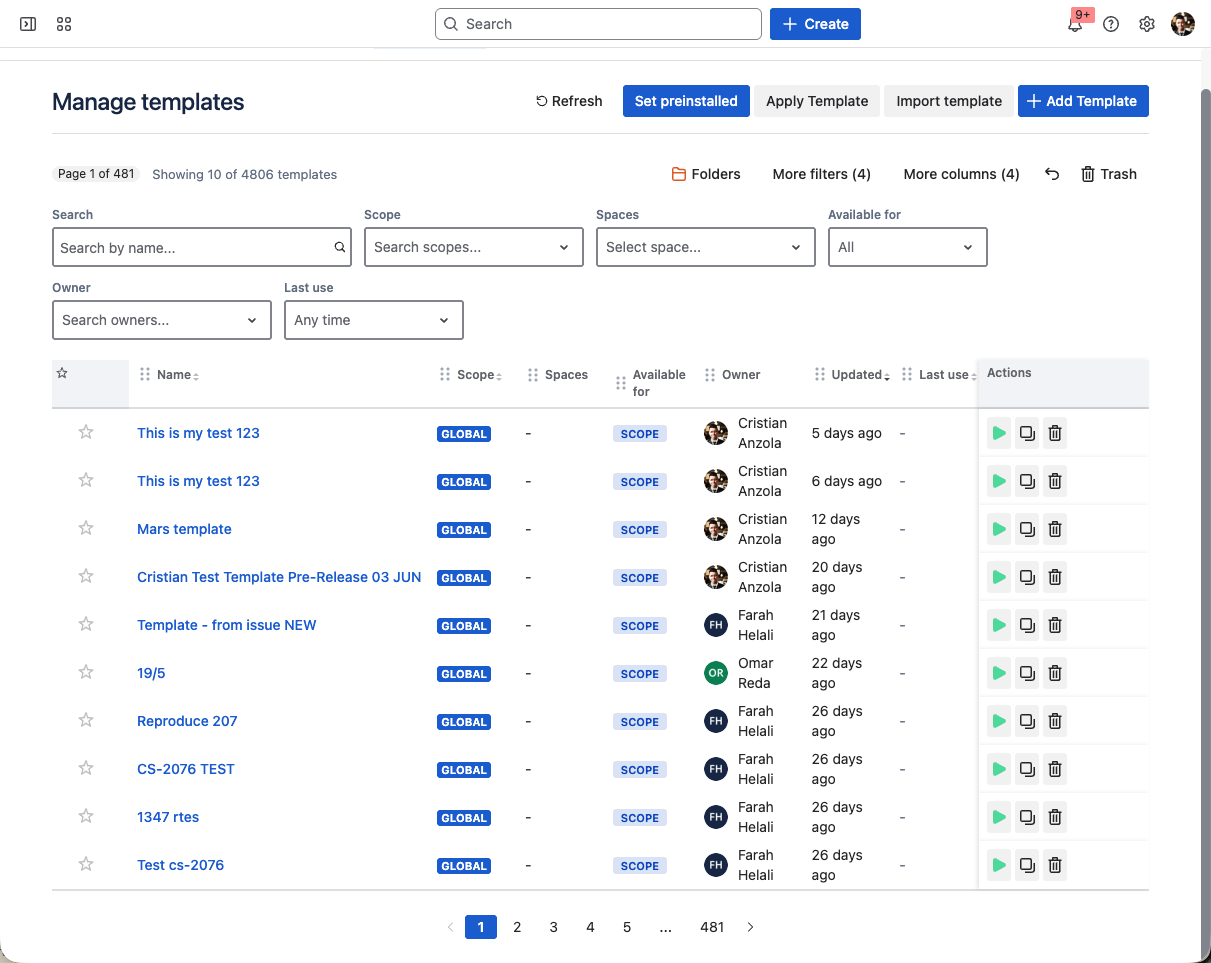
The high-performance Templates view includes:
-
Configurable columns - Show/hide and reorder columns including Name, Scope, Owner, Created, Updated, Last Use, and more
-
Advanced filters - Filter by Scope, Owner, Availability, Space, and date ranges with presets (Today, Last 7 days, Last 30 days, etc.)
-
Search - Fast search by template name
-
Sorting - Click column headers to sort
-
Pagination - Navigate large datasets efficiently
-
Favorites - Star/unstar templates for quick access
-
Trash view - View and restore deleted templates
Scopes View
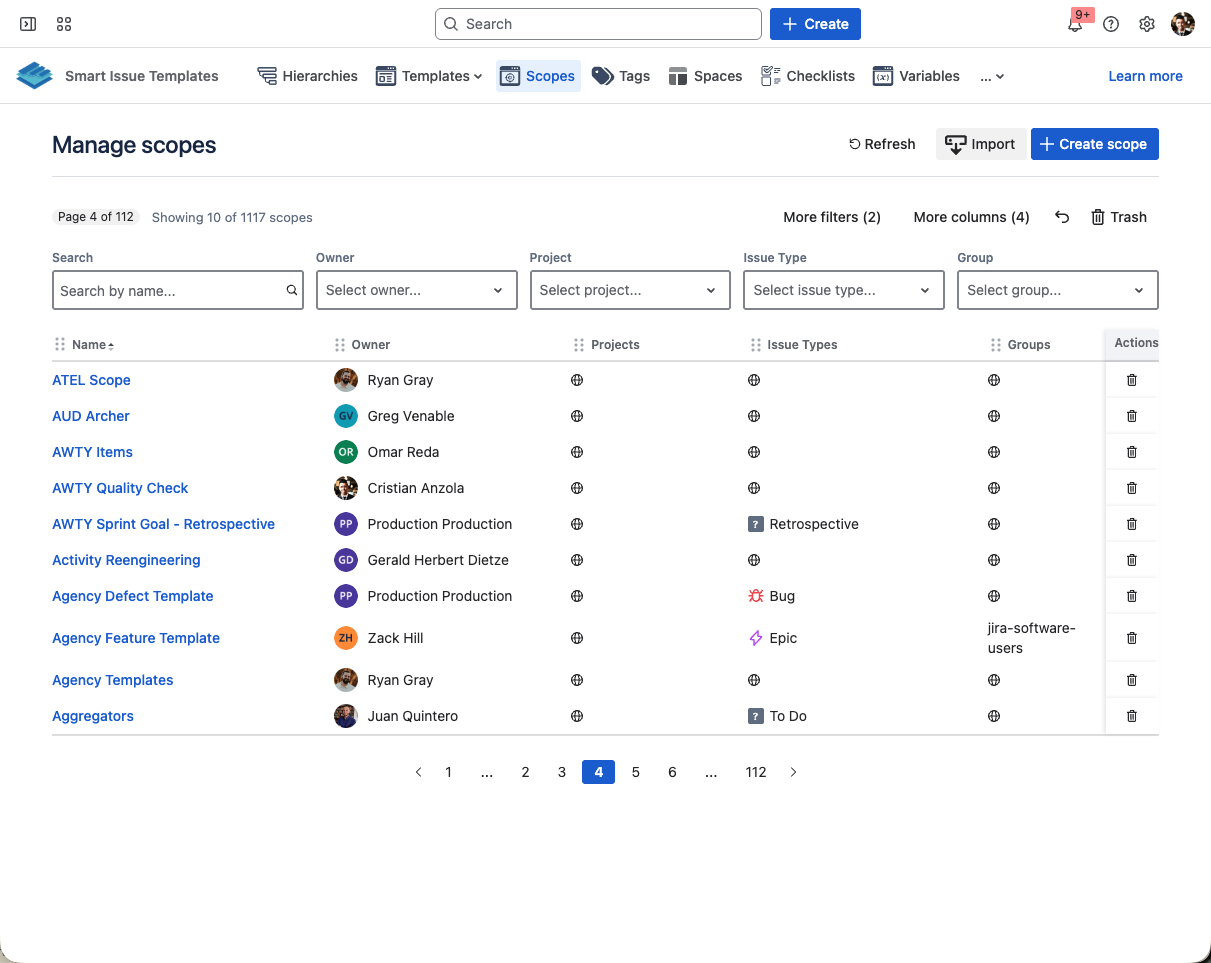
The high-performance Scopes view includes:
-
Configurable columns - Name, Owner, Projects, Issue Types, Groups, Created, Updated
-
Advanced filters - Filter by Owner, Project, Issue Type, Group, and date ranges
-
Search - Fast search by scope name
-
Sorting - Click column headers to sort
Switching Between Views
You can switch between the classic and high-performance views using the Classic View toggle in the page header. This is useful for accessing features that may not yet be available in the high-performance view.
Auto-Sync
When High-Performance Mode is enabled, changes made through the app automatically sync to the optimized storage:
-
Templates - Create, update, delete, soft delete, and restore operations
-
Scopes - Create, update, delete, and bulk import operations
-
Spaces - Create, update, delete, and usage updates
The Last Use timestamp and Usage Count are also tracked when templates are applied.
Rollback to Classic Mode
Easy rollback: You can return to the classic view at any time by simply toggling OFF the High-Performance Storage switch in Admin Settings. Your data remains safe in both storage systems, and you can switch back and forth as needed.
To disable High-Performance Mode:
-
Navigate to Admin Settings from the app's main menu
-
Locate the Storage Settings panel
-
Toggle High-Performance Storage to OFF
The app will immediately return to using the classic views for Templates and Scopes. No data is lost - you can re-enable High-Performance Mode at any time without needing to run migrations again (unless new items were created while the feature was disabled).
Maintenance Operations
Sync Deleted Templates
If you have templates that were deleted before enabling High-Performance Mode, use the Sync Deleted Templates operation in Storage Settings to populate the trash view with previously deleted items.
Re-running Migration
If you see an "Outdated" status, simply run the migration again to sync any new items that were created outside of auto-sync.
Performance Characteristics
|
Operation |
Typical Time |
|---|---|
|
Page load (10 rows) |
200-500ms |
|
Filter change |
200-400ms |
|
Search |
300-600ms |
|
Total count |
50-100ms |
Tested at scale: High-Performance Mode has been tested with 10,000+ templates and maintains fast response times regardless of dataset size.