
This page covers what happens in Jira Cloud when Smart Issue Templates data (scopes, templates and hierarchies) arrives through the Jira Cloud Migration Assistant (JCMA): what is carried, how it is matched on your Cloud site, how to follow the migration, and what to do about anything reported as unmatched.
The migration is started from Jira Data Center. For the Data Center steps (prerequisites, adding the app to the migration plan, the JCMA dashboard and the Cloud Migrations page), see Automated migration (Recommended) in the Data Center documentation.
If the automated migration cannot complete, use the Manual migration path (alternative).
1. Before You Begin
|
Requirement |
Details |
|---|---|
|
Cloud Plugin Version |
28.0.0 or higher |
|
DC Plugin Version |
3.1.9 or higher (Jira 10 and below) or 4.0.5 or higher (Jira 11) |
|
Cloud Permissions |
Jira administrator, to see the Migration status page |
|
Jira migration |
The projects and users your scopes and templates use must be part of the same JCMA migration |
While a migration is running, Smart Issue Templates shows Migration in Progress and asks users not to use the app until it finishes, to avoid conflicts.
2. What Arrives
The data arrives in this order, so that everything a record points at is already on the site:
-
Project and work type names from Data Center, used only to name things in the error log
-
Scopes
-
Templates
-
Hierarchies
How references are matched on your Cloud site
|
Reference |
How it is matched |
If it cannot be matched |
|---|---|---|
|
Projects and work types of a scope or template |
Through the JCMA project and work type mapping |
That scope or template is not migrated, and the error log names the missing project or work type |
|
Project and work type of a hierarchy level |
Project by key, then by name; work type by name within that project |
The hierarchy is migrated. The level is kept with that value empty and marked Incomplete so you can fix it |
|
Owners |
Through the JCMA user mapping, then by email |
A site administrator becomes the owner. If none is found, the owner shows as Migrated User |
|
Assignee and reporter of a template |
By the Data Center username |
Left empty |
|
Groups of a scope |
By name |
Left out of the scope |
|
Custom fields of a template |
Through the JCMA field mapping, for the supported field types |
Left out of the template |
|
Priority, resolution, components and versions of a hierarchy level |
By the JCMA mapping, then by name |
Left out of the level, and listed as a warning |
|
Scope of a template |
The migrated scope with the same Data Center scope. The Data Center Global scope becomes the Cloud Global scope |
- |
Not carried
-
The reporter of a hierarchy level, unless it is a dynamic reporter
-
The scope and available for settings of a hierarchy. Set them again in Cloud after the migration
3. Following the Migration
3.1 Migration status page
-
In Jira Cloud, go to Settings (⚙) > Apps
-
Find Smart Issue Templates, open the ... menu and select App Settings
-
Open Migration status
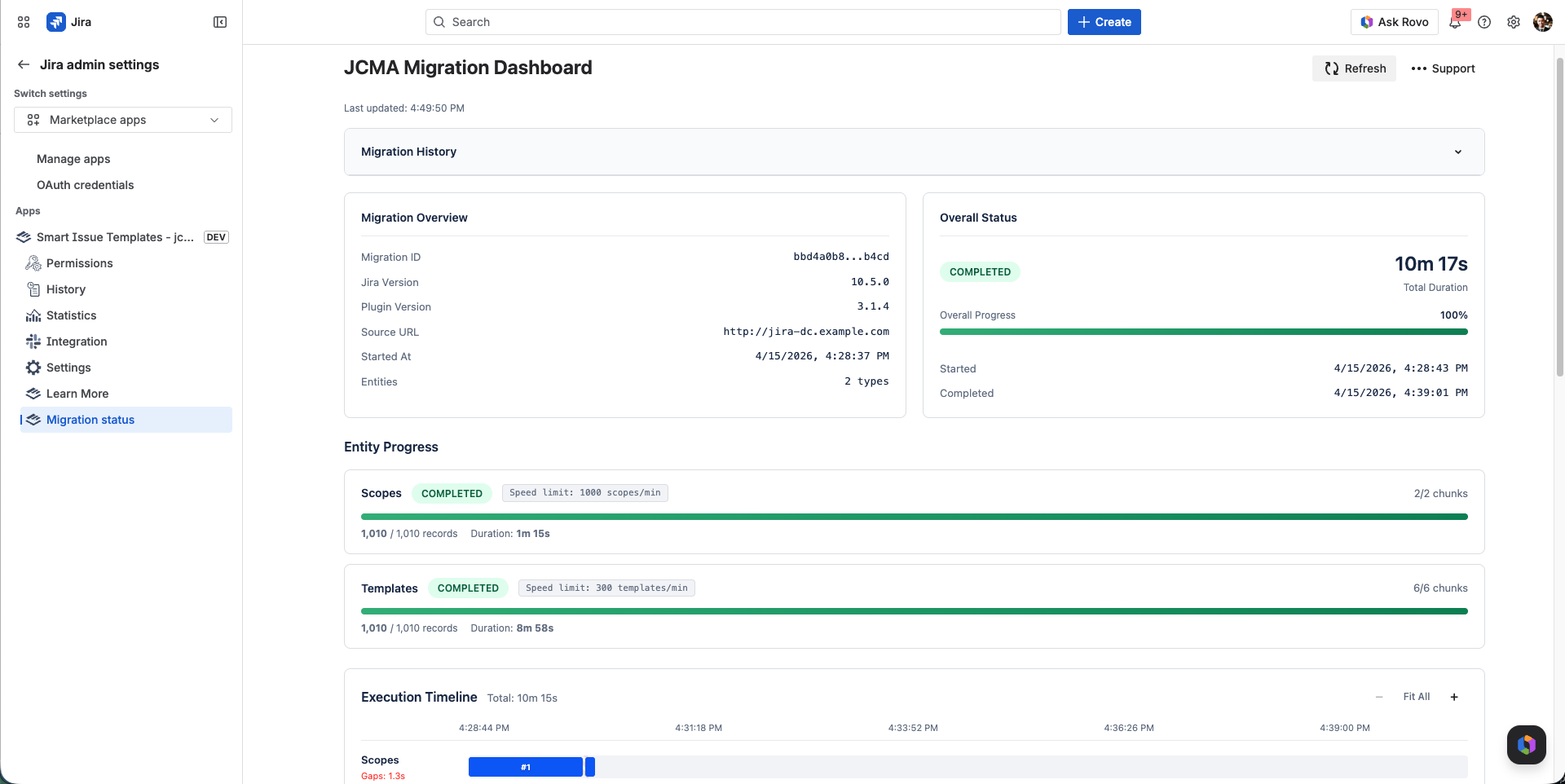
|
Section |
What it shows |
|---|---|
|
Migration History |
Previous migrations |
|
Migration Overview |
Migration ID, Jira version, plugin version, source URL, start time and the entities being migrated |
|
Overall Status |
Duration, overall progress and the current state, with a Cancel Migration button |
|
Entity Progress |
Progress for each kind of data: scopes, templates and hierarchies |
|
Error log |
Everything that did not come across in full, grouped by problem, with a count of errors and warnings. Shows Nothing to report when everything came across |
|
Execution Timeline and Chunk Timing Details |
When each batch of records was processed and how long it took |
The Support menu on the page lets you export the migration data to send to support, and clear the migration history.
3.2 The log in JCMA
Smart Issue Templates also writes progress to the JCMA log on Data Center (see the Data Center guide for how to download it). The main lines are:
|
Log line |
Meaning |
|---|---|
|
|
Cloud received the migration and how many records and chunks each entity has |
|
|
Scopes and templates progress, every 10% |
|
|
Hierarchies progress, once per chunk |
|
|
The migration finished |
|
|
No problems to review |
|
|
A summary of the problems follows, one line per kind. The full list is in the Error log on the Migration status page |
Log lines that say Open Smart Issue Templates > Migration log refer to the Error log section of the Migration status page.
4. Unmatched Items and What to Do
|
Message in the Error log |
What it means |
What to do |
|---|---|---|
|
|
A scope or template uses a project or work type that was not migrated, so it was not created |
Add the project to the JCMA migration (or create the work type in Cloud) and re-run the migration |
|
|
A hierarchy level points at a project or work type that is not on the site. The level is marked Incomplete |
Create the project or work type and re-run the migration, or edit the level in Cloud |
|
|
A user could not be found in Cloud |
Make sure the user is part of the migration, or update the field in Cloud |
|
|
The value was left out of the hierarchy level |
Create the value in Cloud and re-run, or set it in Cloud |
|
|
Data Center could not export that field |
Set the field again in Cloud |
Re-running a migration
Running the migration again updates what the previous run created instead of adding copies, because every record keeps the same identity between runs. The previous run is kept in Migration History.
Verifying the result
-
Check that the Error log shows Nothing to report, or review each line
-
Spot-check a few scopes (projects, work types, groups, owner)
-
Spot-check a few templates (project, work type, scope, fields)
-
Open a few hierarchies and look for levels marked Incomplete, then set their scope and available for settings
Getting Help
Contact us via the Customer Portal with the migration ID, the JCMA log, and the migration data exported from the Support menu on the Migration status page.
See also Migrate from Data Center to Cloud for known limitations and frequently asked questions.