.png)
The Permissions page allows configuring permissions for various actions that users can perform with the app.
The permission page is available only for Jira administrators.
To open a Permission page:
-
Click on Apps on the navigation bar.
-
Click on Manage your apps.
-
Click the Encrypted Comments item in the left sidebar.
-
Click the Permissions item

The permissions are set by default as it is displayed in the screenshot above.
Edit Permissions
Go to the Encrypted Comments Permissions page:
-
Click the Edit Permissions button in the top right corner of the page.
-
Start typing the username or the group name in the Add user or Add group fields of the specific permissions group.
-
After selecting the username or a group it will appear in the Grant to the column.
-
Click the Save Changes button to apply changes.
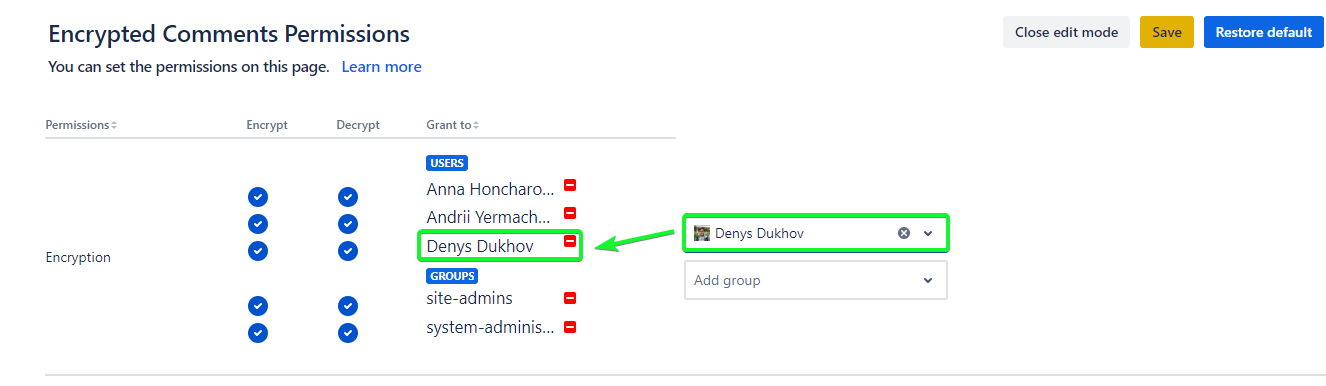
Permissions Dialog
Permission Dialog can contain four options depending on permission.
|
Option |
Description |
|---|---|
|
Anyone |
Any user can perform this action |
|
Groups |
Users in the listed groups can perform this action |
|
Users |
Selected users can perform this action |
To mange groups or lists of users, you should have Browse Users Jira Permission
Encryption Permissions
Encrypt- the user that has this permission can encrypt the comment.
Decrypt - the user that has this permission can decrypt their own comment or that encrypted comment, where the user was selected for encryption.
There are two permission conditions:
:Permission_ON: - current permission is enabled for the user/group in the row
:Permission_OFF: - current permission is disabled for the user/group in the row
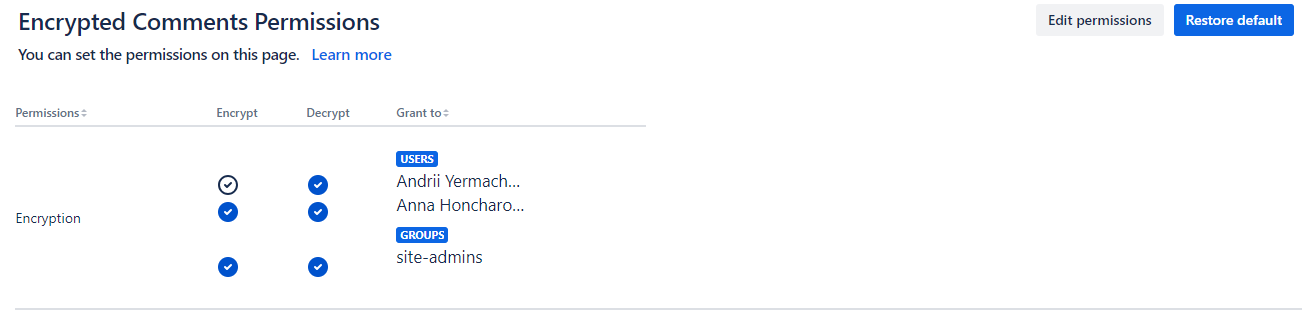
For example in this case:
-
Andrii Yermachenkov is a member of a site-admins group, but he has his own permissions granted: he is not able to encrypt the comment. He is able to decrypt only comments he is the owner of or where he was selected for sending encrypted comments.
-
Members of the site-admins group (except Andrii Yermachenkov) can encrypt and decrypt the comments.
Restore Default Permissions
To restore Default Permissions go to the Templates Permissions page:
-
Click on Apps on the navigation bar.
-
Click on Manage your apps.
-
Find a Templates Permissions item in the left sidebar and click it.
-
Click the Restore default button in the top right corner of the page.
-
Click the Confirm button on the Restore default permissions dialog.